How to embed a flipbook on your website (WordPress, Wix, Squarespace, Shopify)
Copy one embed code and your flipbook appears right inside your own web page. Here's how to get the code for free and paste it into WordPress, Wix, Squarespace, Shopify or Google Sites.
Flipbook Maker TeamOct 19, 2026 7 min read
To embed a flipbook on your website, publish it, copy its iframe embed code, and paste that code into an HTML or "embed code" block on your page. Visitors then flip through the book right on your site, without leaving it or downloading a PDF. With Flipbook Maker the embed code is free, and it works in WordPress, Wix, Squarespace, Shopify, Google Sites and any site where you can add HTML.
Key takeaways
- An embed code is a short
<iframe>snippet that shows your flipbook inside another web page. - In Flipbook Maker you get it from the share panel → Embed → Copy embed code after publishing.
- The book must be public. Private books only open for you, so visitors would see nothing.
- Each website builder has its own "custom code" block. Some need a paid plan before they accept iframes (details below).
- Set the height to fit your pages: around 600–800 pixels works for most books.
What is a flipbook embed code?
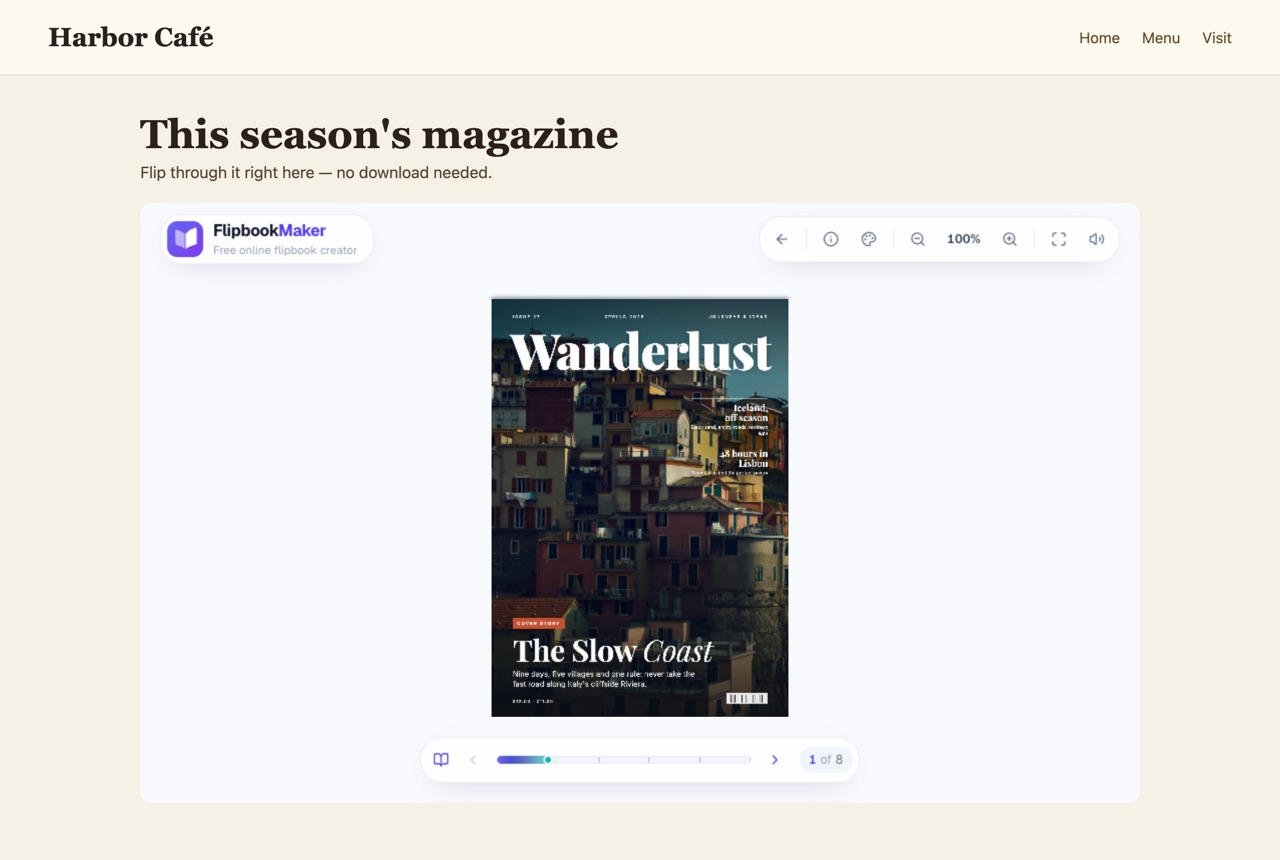
An embed code is a piece of HTML that loads one web page inside another. A flipbook embed uses an <iframe>: your site shows a window, and the flipbook runs inside it with page turns, zoom and fullscreen. Your visitors stay on your page, and the book still counts their daily views.
Here's what the Flipbook Maker embed code looks like:
<iframe src="https://flipbookmaker.online/your-book" title="Your book title" width="100%" height="600" style="border:0;max-width:100%;border-radius:12px" allow="fullscreen" allowfullscreen loading="lazy"></iframe>
srcis your flipbook's address.width="100%"makes it fill the column it sits in, so it shrinks on phones.height="600"is the height in pixels; change it to suit your pages.allowfullscreenlets readers use the fullscreen button.loading="lazy"waits until the reader scrolls near the book before loading it, which keeps your page fast.
Step 1: Make and publish your flipbook
- Go to Flipbook Maker and drop in your PDF, images or Word file. If your design is in Canva, see how to turn a Canva design into a flipbook.
- Select Create flipbook and check the pages.
- Select Share & get a link, sign in with a free account, choose your link, and make sure the book is set to Public.
- Publish.
New to flipbooks? The full walkthrough is in how to turn a PDF into a flipbook for free.
Step 2: Copy the embed code
In the share panel that opens after publishing, select Embed, then Copy embed code. You can reopen it any time with the Share button on your book's page, or from the book's page in My flipbooks.
Step 3: Paste it into your website
Find your builder below. The menu names come from each platform's own help pages (checked October 2026).
WordPress
WordPress.com and self-hosted WordPress both use the Custom HTML block:
- Open the page or post in the editor.
- Click the + block inserter, search for HTML, and add the Custom HTML block.
- Paste your embed code and click Update or Publish.
On WordPress.com, iframe code only works on a paid plan with hosting features activated, according to WordPress.com's Custom HTML guide; the free plan won't accept it. Self-hosted WordPress sites don't have this limit for administrators.
Wix
Wix's help page Embedding a site or a widget lists these steps:
- In the Wix Editor, click Add Elements, then Embed Code, then Popular Embeds.
- Choose Embed HTML to add the element to your page.
- Click Enter Code, paste your embed code, and click Apply.
- Drag the element's handles so it's as wide and tall as you want, then publish.
Squarespace
- Edit the page and click Add block (or +).
- Choose a Code block and paste your embed code.
- Save and publish.
Squarespace notes that adding an iframe to a code block needs the Core, Plus or Advanced plan (Add custom code to a page with code blocks).
Shopify
- In your Shopify admin, go to Online Store → Pages (or open a blog post).
- Open the page and, in the content editor, click Show HTML (the
<>button). - Paste the embed code where you want the book, then save.
This is the same method Shopify's help center describes for adding embed code to pages and blog posts.
Google Sites
- Click Insert, then Embed.
- Open the Embed code tab, paste the code, and click Next.
- Click Insert and resize the box on the page.
Steps from Google's help page Add Google files, videos, website content & more.
Any other site or plain HTML
Paste the code into your page's HTML wherever you want the flipbook to appear. If your builder has an "HTML", "Embed" or "Custom code" block, that's the one to use.
How tall should the embed be?
The book scales to fit the box, so the box shape decides how big the pages look:
| Your pages | Good starting height |
|---|---|
| Portrait (A4, US Letter): magazines, menus, yearbooks | 700–800 px |
| Landscape or 16:9: catalogs, slide decks | 500–600 px |
| Square: social posts, photo books | 600–700 px |
On phones the width shrinks automatically. If the book looks small there, readers can tap the fullscreen button in the toolbar to fill the screen.
Embed or link: which should you use?
| Embed on your site | Share the link | |
|---|---|---|
| Where people read it | On your page, next to your own content | On flipbookmaker.online, full screen |
| Best for | Website pages, blog posts, product pages | Email, WhatsApp, social posts, QR codes |
| Setup | Paste code once | Copy and send |
Many people do both: embed the book on their site, and share the direct link or a QR code everywhere else, like on a restaurant's table cards.
Good things to know
- Public books only. If you switch a book to private later, it stops showing on your website too.
- Views still count. Visits to the embedded book show up in your dashboard's daily views, just like visits to the link.
- Changing the link breaks the embed. If you rename your book's address, update the
srcin the embed code. The old address stops working. - Pages are images. Links inside your PDF aren't clickable in the flipbook, so put important buttons (shop, book a table) on your web page next to the embed.
- A small "Made with Flipbook Maker" label appears next to the book for readers; there's no watermark on your pages.
Troubleshooting
The embed is blank
Check that the book is public and that you pasted the whole code, from <iframe to </iframe>. On WordPress.com and Squarespace, make sure your plan allows iframes (see above).
It's cut off at the bottom
Increase the height value in the code, for example from 600 to 750.
It's tiny on my phone
That's the page scaling to fit a narrow screen. Make the embed taller, or tell readers to use the fullscreen button.
Frequently asked questions
Is the flipbook embed code free?
Yes. Publishing a flipbook and copying its embed code is free with Flipbook Maker, with no watermark on your pages.
Can I embed a flipbook in WordPress without a plugin?
Yes. Paste the iframe code into a Custom HTML block. On WordPress.com, iframes need a paid plan with hosting features activated; self-hosted WordPress doesn't need a plugin.
Will the embedded flipbook work on phones?
Yes. The embed uses the full width of the page and the book scales to fit. On phones held upright readers see one page at a time.
Can I embed more than one flipbook on a page?
Yes. Each book has its own embed code; paste each one where you want it. Keep page speed in mind: the loading="lazy" part helps by loading books only when readers scroll to them.
Does embedding affect my SEO?
Text inside an embedded flipbook isn't read as part of your page, because it loads from another site and the pages are images. Write a short description of the book on your page itself so search engines (and readers) know what it contains.
Wrap-up
Publish your flipbook, copy the embed code from the share panel, and paste it into your site's HTML or embed block. That's all it takes to put a page-turning catalog, menu or magazine on your own website.