How to make a digital restaurant menu with a QR code (free)
Turn your menu PDF into a page-turning flipbook, print a QR code that scans first time, and update prices without reprinting every table card.
Flipbook Maker TeamOct 12, 2026 6 min read
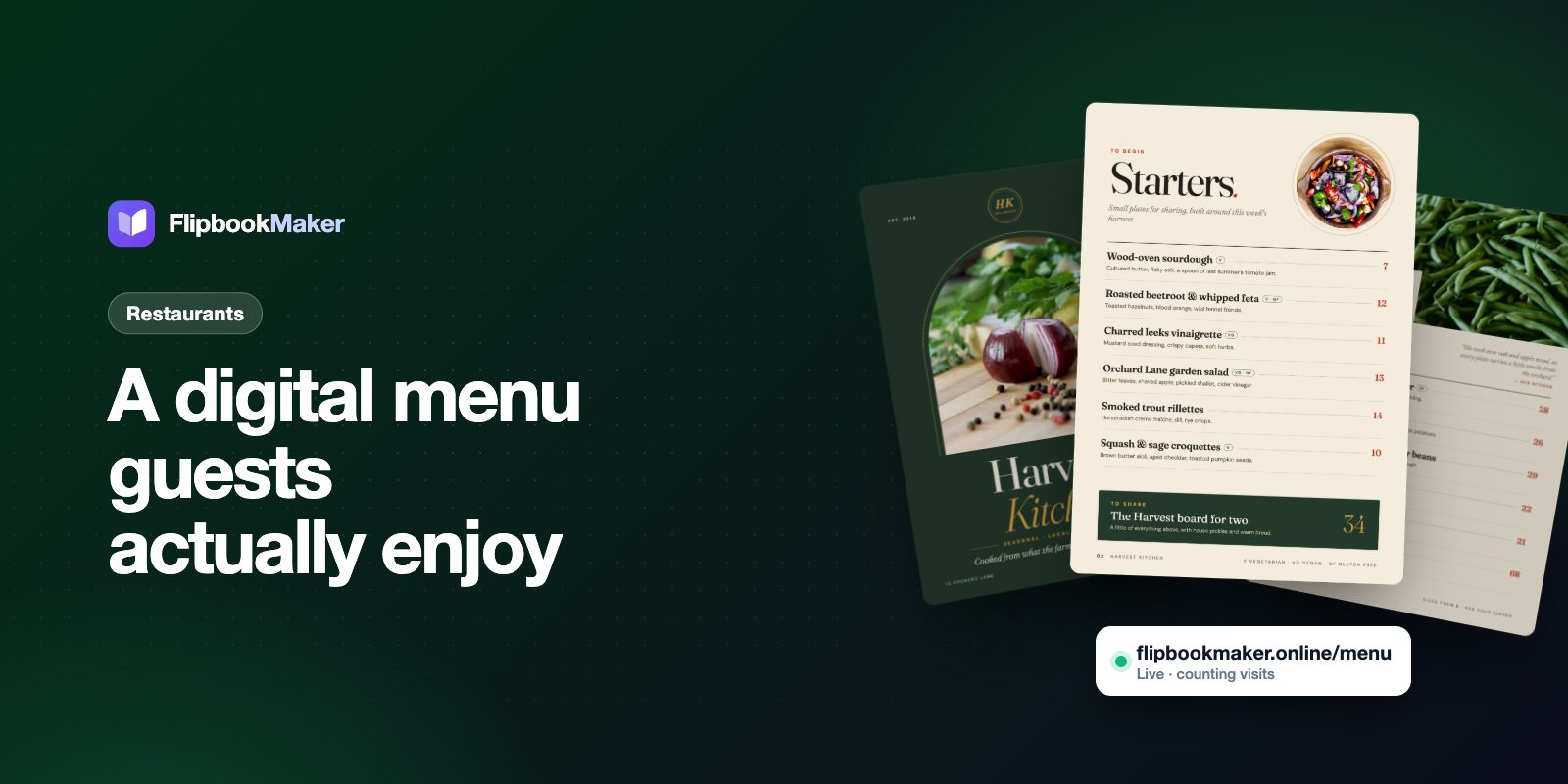
A digital restaurant menu with a QR code is a link to your menu that guests open by scanning a code on the table, in the window or on a receipt. If that link opens a plain PDF, guests pinch and zoom through tiny text. If it opens a flipbook menu, they turn pages like your printed menu, with your photos and design intact. Below is how to make one for free, how to print the QR code so it scans, and how to update the menu when prices change.
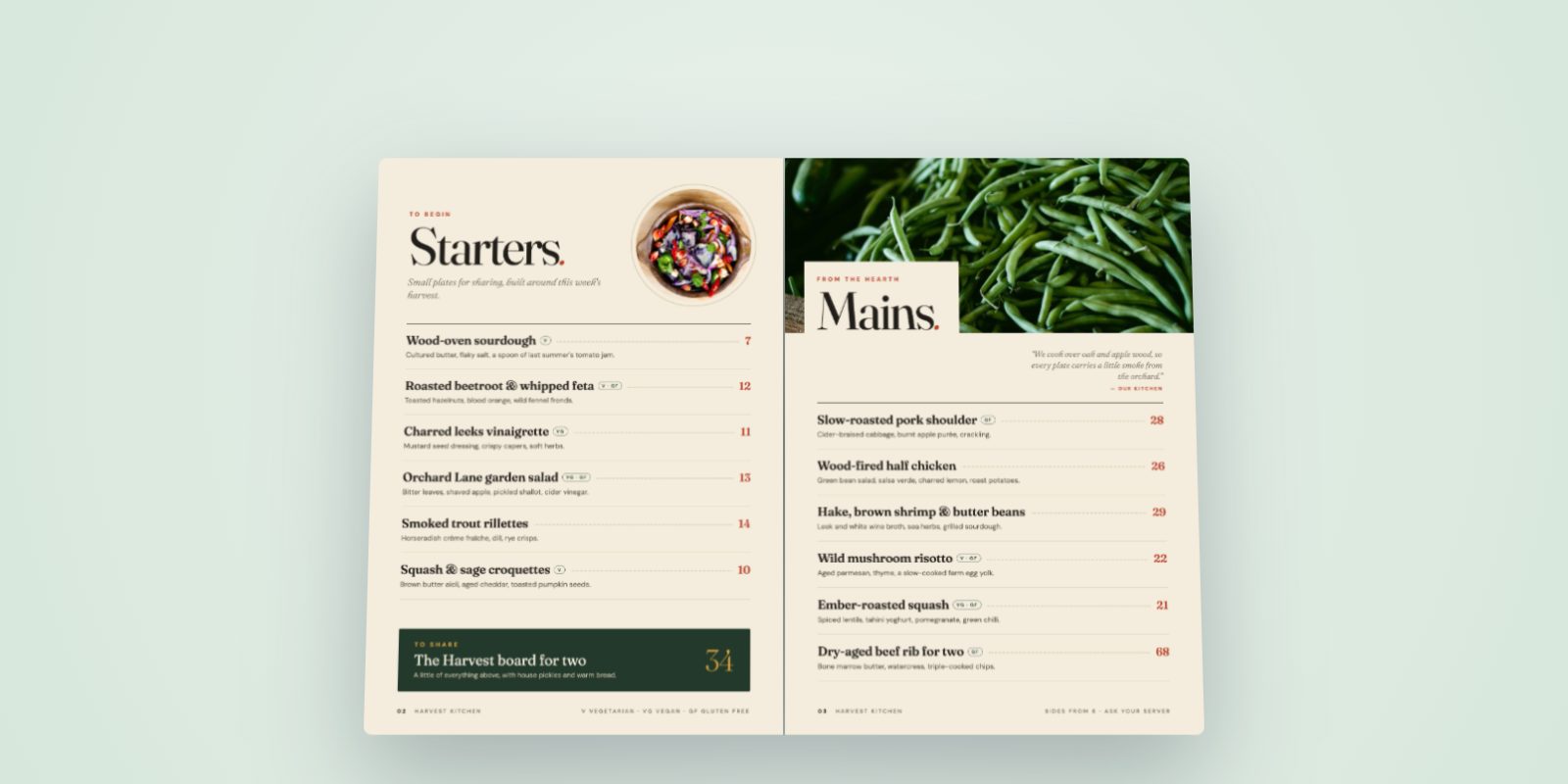
Harvest Kitchen, a made-up restaurant from our examples, as a flipbook spread.
Key takeaways
- Start from the menu you already have. Any PDF, Word file or set of photos works.
- Publish it at a short link such as
flipbookmaker.online/your-restaurant-menu, then download the built-in QR code. - Test the QR code from a real table before you print a batch.
- Each flipbook keeps its link, but you can't swap the file inside it. Plan how you'll update prices (see below).
- Keep a plain-text version of the menu on your website too. Flipbook pages are images, so search engines can't read the dishes.
Why a flipbook menu beats a plain PDF
- It feels like your real menu. Same design and photos, with page turns.
- It opens in the browser. No app or download. On a phone held upright it shows one page at a time; turned sideways or on a computer, it shows a two-page spread.
- Guests can zoom. Pinch to zoom up to 400% to read the small print.
- One link everywhere. The same link and QR code work on every table, the window, your social profiles and receipts.
- You see if it's used. The menu's stats show daily views (today, the last 7 days and the total).
Step 1: Start from your existing menu
Export your menu as a PDF from Canva, Word, InDesign or whatever you design in (Canva export steps). Clear photos of a printed menu work too: shoot each page flat, in daylight, straight on.
Before you export, check that:
- The text is large enough to read on a phone. If you have to squint at the PDF on your own phone, guests will too.
- Prices and allergen notes are current.
- Every page is the same size. Mixed sizes look uneven when the pages turn.
Step 2: Turn it into a flipbook
Drop the file into Flipbook Maker and select Create flipbook. It converts in your browser, so nothing is uploaded until you publish. Page through it once on your phone.
Step 3: Publish with your restaurant's details
Select Share & get a link and sign in with a free account. Pick a short link such as flipbookmaker.online/harbor-cafe-menu. In the book's details, add your restaurant name, a tagline, logo, phone, email and website. They show in the reader around the menu.
Step 4: Download and print the QR code
After publishing, open the share panel and download the QR code as a PNG. It's built in, so you don't need a separate QR generator.
Printing tips:
- Test before you print a batch. Print one table card and scan it with two or three different phones from where a guest would sit.
- Keep a white border (a "quiet zone") around the code, and don't place it over a busy photo.
- Use dark on light. A black code on a white background scans most reliably.
- Add a short line under the code, such as "Scan for our menu", plus the link written out for anyone whose camera won't scan.
- Avoid glossy laminate under strong lights if your test scans struggle. Matte finishes reflect less.
How to update your digital menu
Each flipbook keeps its own link and QR code, but you can't replace the PDF inside a published book. You can still change its title, link, visibility and details. When dishes or prices change, pick one of these:
- Small changes: publish the new menu as a new flipbook, then reprint the QR code. This is fine if you reprint table cards anyway.
- Frequent changes (recommended): point your QR code at a page on your own website, such as
yourrestaurant.com/menu, and embed the flipbook on that page. When the menu changes, publish the new flipbook and swap the embed code on your page. The printed QR code never changes. - Daily specials: keep them off the main menu. Write them on a board, or publish a separate small flipbook and share it on social media.
Keep a text menu on your website, too
A flipbook is great for guests who scan at the table. But its pages are images, so search engines can't read your dishes, and flipbook pages are kept out of Google search. If you want people to find you by searching for a dish, also keep the menu as normal text on your website, and embed the flipbook beside it.
Nutrition and allergen information
If your restaurant is part of a chain with 20 or more locations, US rules apply: the FDA's menu labeling requirements require calorie counts on menus and menu boards, a statement about 2,000 calories a day, and a note that more nutrition information is available on request. Check with your local authority for allergen rules where you are. Whatever applies to you, put the information on the menu pages themselves so it's in the flipbook too.
Menu design tips that work on a phone
- Lead with best-sellers on the first spread. Many guests won't turn past it.
- Use real photos of your dishes, cropped tight so they read at phone size.
- Split long menus into sections: starters, mains, desserts and drinks, with the section name at the top of each page.
- Keep the drinks list separate if it's long, as its own flipbook with its own QR code at the bar.
- Put your hours, address and phone on the last page. Links in the pages can't be tapped, because each page is an image.
What a flipbook menu can't do
- No online ordering or payments. It's a menu to read, not an ordering system.
- No tappable links inside the pages. Your contact details in the book's details show in the reader instead.
- No download or print button for guests.
- No live price edits. See the update options above.
If you need ordering at the table, use a dedicated ordering system and keep the flipbook for browsing, for example in your window or on your website.
FAQ
How do I make a QR code menu for free?
Export your menu as a PDF, turn it into a flipbook with Flipbook Maker, publish it with a free account, and download the QR code from the share panel. There are no paid plans.
Can guests open the menu without an app?
Yes. The QR code opens a normal web link in the phone's browser. No app or download is needed.
Can I change my menu after printing the QR code?
You can't swap the file inside a published flipbook. To keep the same QR code, point it at a menu page on your own website and embed the flipbook there. Then you only swap the embed code when the menu changes.
Will my menu show up in Google?
The flipbook won't, because flipbook pages are kept out of search and the pages are images. Keep a text version of your menu on your website for search.
How big should the QR code be on a table card?
Big enough to scan from where a guest sits. Print a test card and scan it with a few different phones before printing the batch.
Summary
A flipbook menu gives guests your real menu, page by page, from one QR code. Start from your current PDF, publish it at a short link, test the QR code at a table, and decide up front how you'll update prices. See it in action in our Harvest Kitchen example, read more on the digital menu page, then make your own menu.