Can Canva make a flipbook? How to turn a Canva design into one
Canva doesn't have a built-in page-turning flipbook. Export your design as a PDF, upload it to a flipbook maker and share it as a link, QR code or embed — step by step, free.
Flipbook Maker TeamOct 18, 2026 8 min read
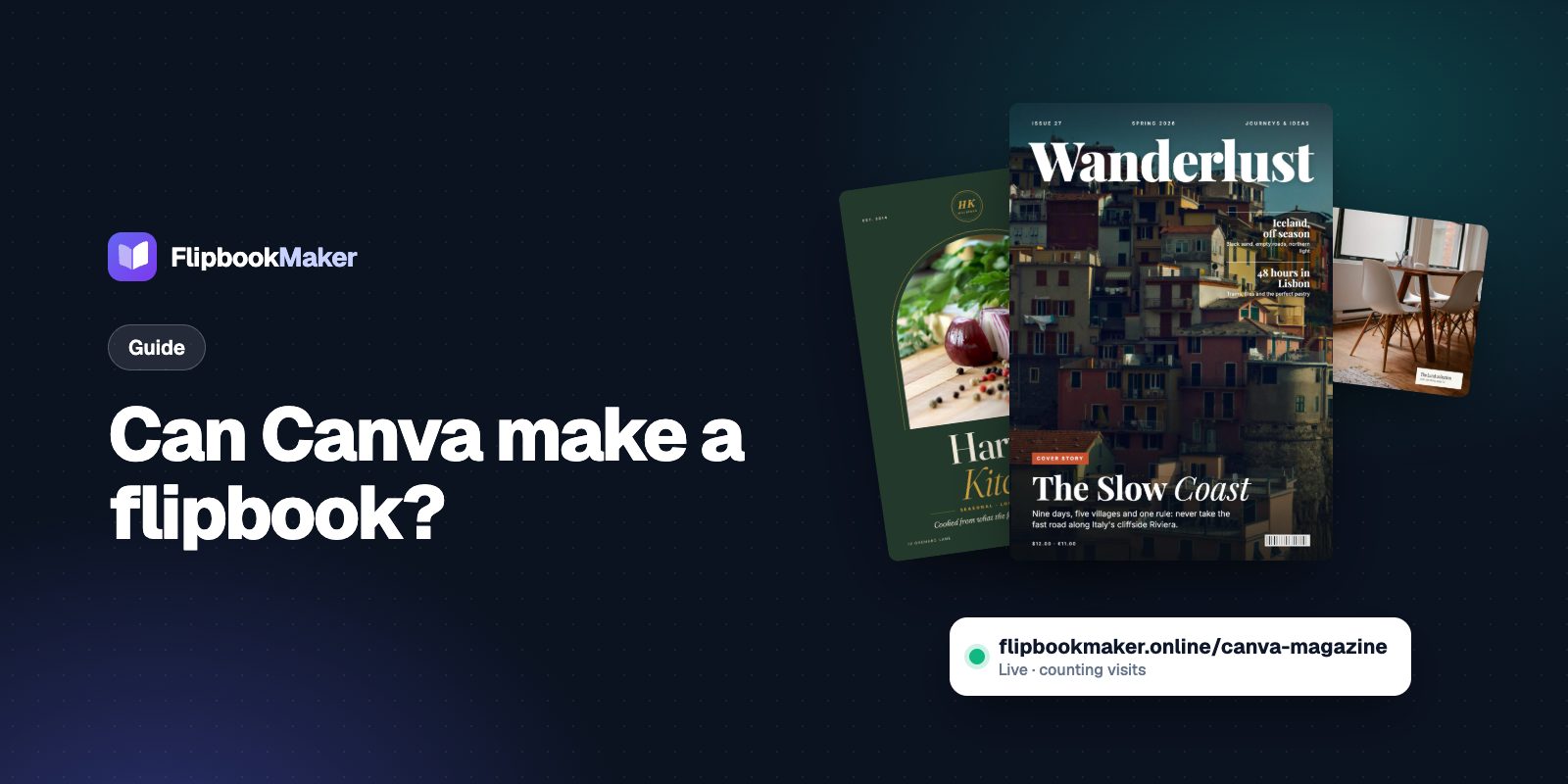
Canva can't make a page-turning flipbook on its own. As of October 2026, Canva has no built-in flipbook format; its Help Center points people to third-party apps such as Issuu instead. The simple route is to download your Canva design as a PDF and upload that PDF to a flipbook maker, which turns it into a book that flips like print, with its own link you can share.
This guide shows the exact Canva export settings, how to turn the PDF into a free flipbook in about a minute, and what does and doesn't carry over.
Key takeaways
- Canva designs (magazines, menus, catalogs, brochures, yearbooks) export as PDFs with Share → Download → PDF.
- A flipbook maker turns that PDF into a page-turning book you can open on any phone or computer.
- With Flipbook Maker it's free: no watermark on your pages, your own link, a QR code and an embed code.
- Pages become images in the flipbook, so links inside your Canva design won't be clickable and animations don't play. Put important links in the share text or your book's details instead.
Does Canva have a flipbook feature?
No. Canva lets you design multi-page documents and share them as a view link, a presentation or a Canva website, but it doesn't turn pages like a book. Canva's own help article on flipbooks, Creating interactive flipbooks using Issuu, explains how to send designs to the Issuu app, which needs an Issuu account and only works in Canva on a desktop computer.
You don't need an app connection, though. Every flipbook tool accepts a PDF, and Canva exports clean PDFs.
Step 1: Download your Canva design as a PDF
Canva's Help Center describes the download path (Download designs as flattened PDF):
- Open your design in Canva.
- Select Share, then Download.
- Under File type, choose PDF.
- Under Presets, choose Digital or Print.
- If your design has several pages, keep All pages selected (or pick the ones you want).
- Select Download. If your design uses paid elements, Canva shows Pay and Download instead.
Digital or Print: which preset should you pick?
For a flipbook, Digital is usually all you need. It's smaller, so it uploads faster. Pick Print if your pages have very small text or fine detail you want to stay crisp when readers zoom in. If you choose Print, leave crop marks off: crop marks would show up as lines around every page of the flipbook.
Tips before you export
- Use one page size for the whole design. A flipbook works best when every page has the same shape, like a printed book. US Letter and A4 portrait both look good on phones.
- Check your page count. Books look most natural with an even number of pages: the cover sits alone on the right, then pages open in spreads. If you end on an odd page, Flipbook Maker adds a blank back cover for you.
- Put the hook on page one. The cover is also the preview image people see when you share the link.
Step 2: Turn the PDF into a flipbook
- Go to Flipbook Maker on your computer or phone.
- Drop your Canva PDF onto the upload area, or tap it to choose the file. You can add several files and they'll be combined into one book.
- Open Page options if you want to adjust the layout (more on that below).
- Select Create flipbook.
Your PDF is converted right in your browser, so nothing is uploaded until you decide to publish. A few seconds later you're reading it as a book.
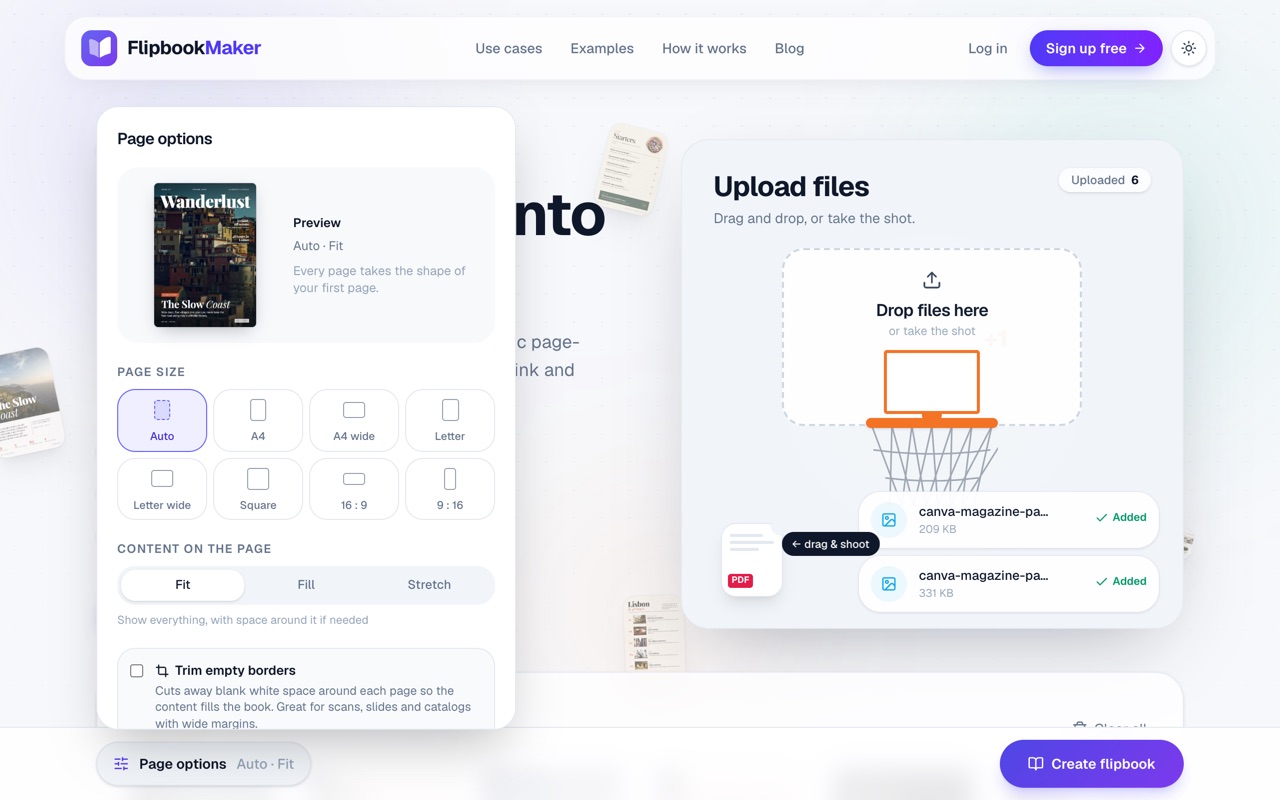
Which page options suit a Canva design?
- Page size: Auto. Every page takes the exact shape of your first Canva page, so nothing gets squeezed.
- Content on the page: Fit. Shows each page whole. Use Fill only if you want edge-to-edge pages and don't mind a little cropping.
- Trim empty borders. Turn this on if your design has wide blank margins, for example a small graphic centered on a big white page. It cuts the empty space so the content fills the book.
- Quality: High. Worth it for catalogs and menus with small print; it makes a bigger file.
Step 3: Check it like a reader would
Flip through the whole book before you share it:
- On a phone held upright you'll see one page at a time; turn the phone sideways or use a laptop and you get two-page spreads.
- Zoom in on the smallest text (up to 400%) to make sure prices, dates and phone numbers are readable.
- Make sure spreads that were designed to sit side by side actually land next to each other. If one is off by a page, add or remove a page in Canva and export again.
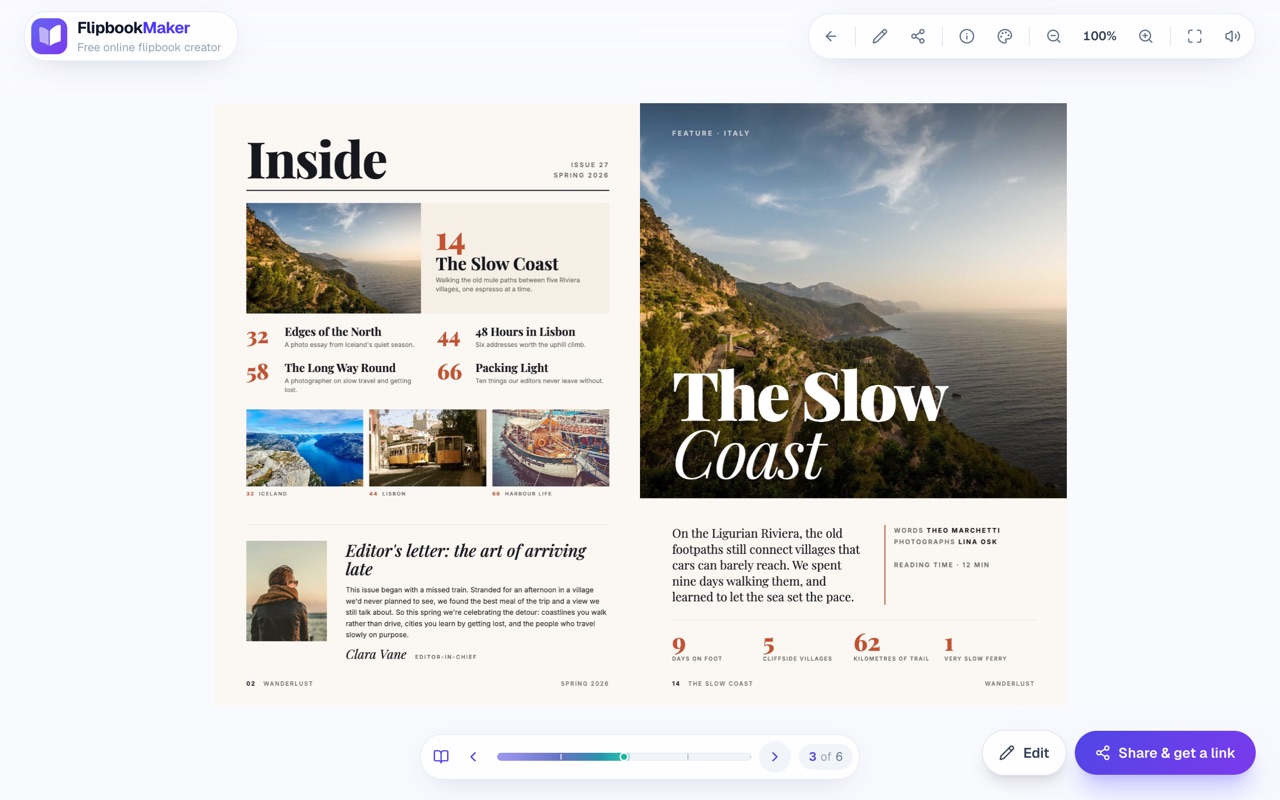
Step 4: Publish and share it
To get a link you can send, you need a free account (email or Google sign-in):
- Select Share & get a link.
- Pick your address, for example
flipbookmaker.online/spring-lookbook, and give the book a title. - Optionally add your logo, website, phone, email and brand color. They appear in the book's info card so readers can reach you.
- Choose Public or Private, then publish.
From the share panel you can:
- Copy the link for emails, texts and your Instagram bio.
- Download a QR code to print on flyers, menus, table cards or the back of a printed copy.
- Copy the embed code to put the flipbook on your own website or blog.
- Share straight to WhatsApp, Facebook, X, LinkedIn or email.
Your dashboard then shows how many people opened the book each day.
What carries over from Canva, and what doesn't
| In your Canva design | In the flipbook |
|---|---|
| Layout, fonts, colors, photos | ✅ Exactly as designed |
| Every page, in order | ✅ Up to 300 pages per book |
| Page size and orientation | ✅ With Page size set to Auto |
| Clickable links and buttons | ❌ Pages become images, so links aren't clickable |
| Animations, videos, audio | ❌ PDFs are static; only the page-turn sound plays |
| Selectable or searchable text | ❌ Readers can zoom, but can't search or copy text |
If links matter (a booking page, an online store), put them in the message you share with the link, print them as short URLs on the page, or add your website in the book's details when you publish.
What can you make in Canva and share as a flipbook?
Almost any multi-page Canva design works:
- Magazines and newsletters. See the digital magazine guide and flip through the Wanderlust example.
- Restaurant menus, opened from a QR code on the table. Here's how to set up a menu flipbook.
- Product catalogs and lookbooks for buyers who browse on their phones: product catalog flipbooks.
- Brochures and real estate listings: digital brochures.
- Yearbooks and school memory books: digital yearbooks.
Already have a PDF from somewhere else? The steps are the same; see how to turn any PDF into a flipbook for free.
Troubleshooting
My pages have white borders around them
Your Canva page probably has empty space around the content, or a page size that differs from the book. Turn on Trim empty borders in Page options and keep Page size on Auto.
Text looks blurry when I zoom in
Export with the Print preset and set Quality to High in Page options, then create the flipbook again.
The download in Canva says "Pay and Download"
Your design includes paid elements. Swap them for free ones or pay for them in Canva; this happens in Canva, before the flipbook step.
The file is too big to publish
Published PDFs can be up to 100 MB. Use the Digital preset, or split a very long design into two books.
Frequently asked questions
Can you make a flipbook in Canva for free?
Canva itself doesn't make flipbooks, but you can design for free in Canva, download a PDF, and turn it into a flipbook for free with Flipbook Maker. There's no watermark on your pages.
Do I need the Canva Issuu app?
No. The Issuu app is one option Canva offers, and it needs an Issuu account. Downloading a PDF works with any flipbook maker and doesn't need an app connection.
Will the links in my Canva design work in the flipbook?
No. Flipbook Maker turns each page into an image, so links and buttons inside the design aren't clickable. Share important links alongside the flipbook instead.
Can people read my Canva flipbook on their phone?
Yes. The flipbook opens in any modern phone or computer browser, with no app and no sign-up for readers.
Can I update the flipbook after I change my Canva design?
Export the new PDF and publish it as a new flipbook. You can't swap the PDF inside an existing book yet, so plan your link (and any printed QR codes) around the version you publish.
Can I put my Canva flipbook on my website?
Yes. After publishing, copy the embed code from the share panel and paste it into your website's HTML.
The short version
Canva doesn't turn pages, but it exports great PDFs. Download your design with Share → Download → PDF, drop it into Flipbook Maker, check the pages, then publish to get a link, QR code and embed code, for free.