How to make a digital magazine for free, from design to a shareable link
A free, step-by-step route to a digital magazine: plan the pages, design them in a tool you already have, export a PDF and publish it as a page-turning flipbook with its own link.
Flipbook Maker TeamOct 28, 2026 6 min read
To make a digital magazine for free, plan your pages, design them in a free tool such as Canva, Google Docs or Word, export the issue as a PDF, and publish the PDF as a flipbook. Readers get one link that opens in any browser and turns pages like a printed magazine. This guide covers the page plan, the design settings that matter, and the steps to publish and share each issue with Flipbook Maker.
Key takeaways
- You need two things: a design tool that exports a PDF, and a place to publish it. Both can be free.
- Export single pages, not spreads. The flipbook builds the two-page spread itself on larger screens.
- A 12–24 page issue is plenty for a first magazine. Use an even page count.
- Give each issue its own link (
flipbookmaker.online/spring-issue) so past issues stay online as an archive. - Flipbook pages are images: no tappable links and no text search inside the issue. Plan for that (see below).
Step 1: Plan the issue on paper first
Decide these before you open a design tool. They save the most rework later.
| Decision | A sensible default | Why |
|---|---|---|
| Page count | 12, 16 or 24 | An even number lets every page sit opposite another one in a spread |
| Page size | US Letter portrait (A4 outside the US) | Fills a phone held upright; prints cleanly if you ever need paper |
| Schedule | Monthly or quarterly | A magazine that comes out on time beats an ambitious one that stalls |
| Sections | 3–5 repeating sections | Readers learn where to look; you always know what to write next |
A page plan for a first issue
| Pages | What goes there |
|---|---|
| 1 | Cover: masthead, issue date, one strong image, 2–3 cover lines |
| 2 | Contents and editor's letter: short, with page numbers for the main stories |
| 3–4 | Feature story: one big photo, a headline, 400–600 words |
| 5–8 | Regular sections: news, interviews, how-tos or reviews |
| 9–10 | Photo spread: a few large images and short captions |
| 11 | Contact or subscribe note: how readers reach you or hear about the next issue |
| 12 | Back cover: one image or a single clear message |
Scale it up by adding more feature pages, or down by cutting the photo spread.
Step 2: Design it in a free tool
Any tool that exports a PDF works. Pick the one you already know.
- Canva: it has a library of free magazine templates. Canva marks some features, such as Brand Kit, as Pro, so check what you need before you commit. Our Canva to flipbook guide has the exact export steps.
- Google Docs: use File → Page setup to set the page size and margins, then File → Download and choose PDF. Docs is good for text-heavy magazines, such as a club or newsletter-style issue.
- Microsoft Word: choose File → Save a Copy (or Save As), then set the file type to PDF. Microsoft's own page lists the steps under Save or convert to PDF.
- Anything else (InDesign, Affinity Publisher, Pages): export to PDF with the same page size on every page.
Design settings that matter on a phone
- One column of large text. Body text at 12–14 pt on a Letter page stays readable when the page is scaled to a phone.
- Big images. Full-page photos look great in a flipbook and need no zooming.
- Margins of at least 0.4 in (1 cm) so nothing touches the edge.
- High contrast. Dark text on a light page, or the reverse; avoid text over busy photos.
- Page numbers in the same corner on every page, so the contents page makes sense.
Step 3: Export the PDF the right way
- Export single pages in order, from cover to back cover. Don't export "spreads" (two pages side by side in one image); the flipbook would show each spread as one wide page.
- Keep one page size for the whole PDF.
- Keep the file under 100 MB, the limit for a published PDF. If a magazine with many large photos is too big, lower the image quality in your tool's export settings.
- Open the PDF yourself and check the page order and the cover.
Step 4: Publish it as a flipbook
- Go to Flipbook Maker and drop in the PDF. It converts in your browser, so nothing is uploaded until you publish.
- Open Page options if you want a fixed page size. Auto uses the proportions of the first page.
- Select Create flipbook and flip through it. Check that the cover sits alone and that the spreads line up.
- Select Share & get a link and sign in with a free account.
- Choose a link with the issue in it, such as
spring-issue-2027. - In the book's details, add your magazine's name, a tagline, your logo, and your website or email. They show around the issue in the reader.
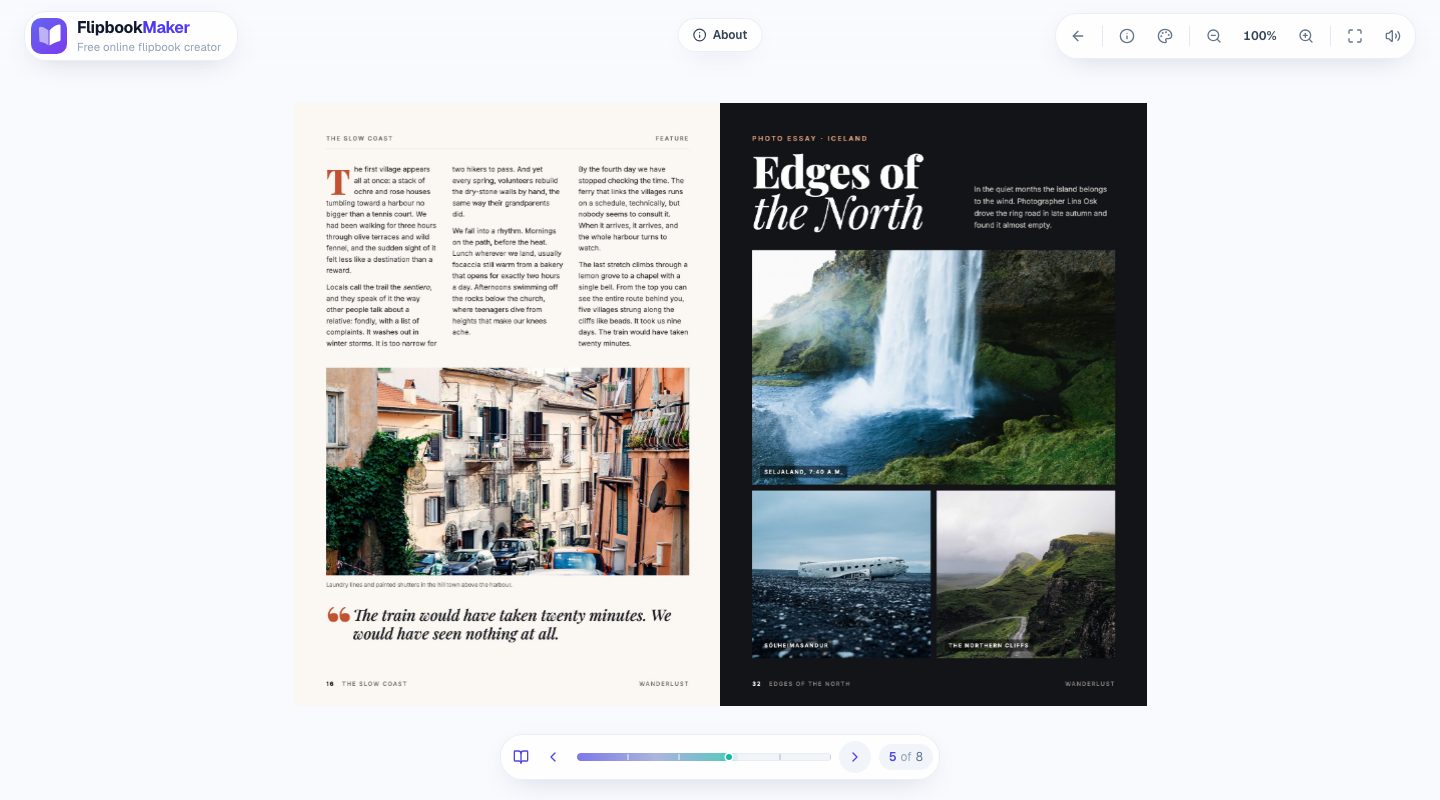
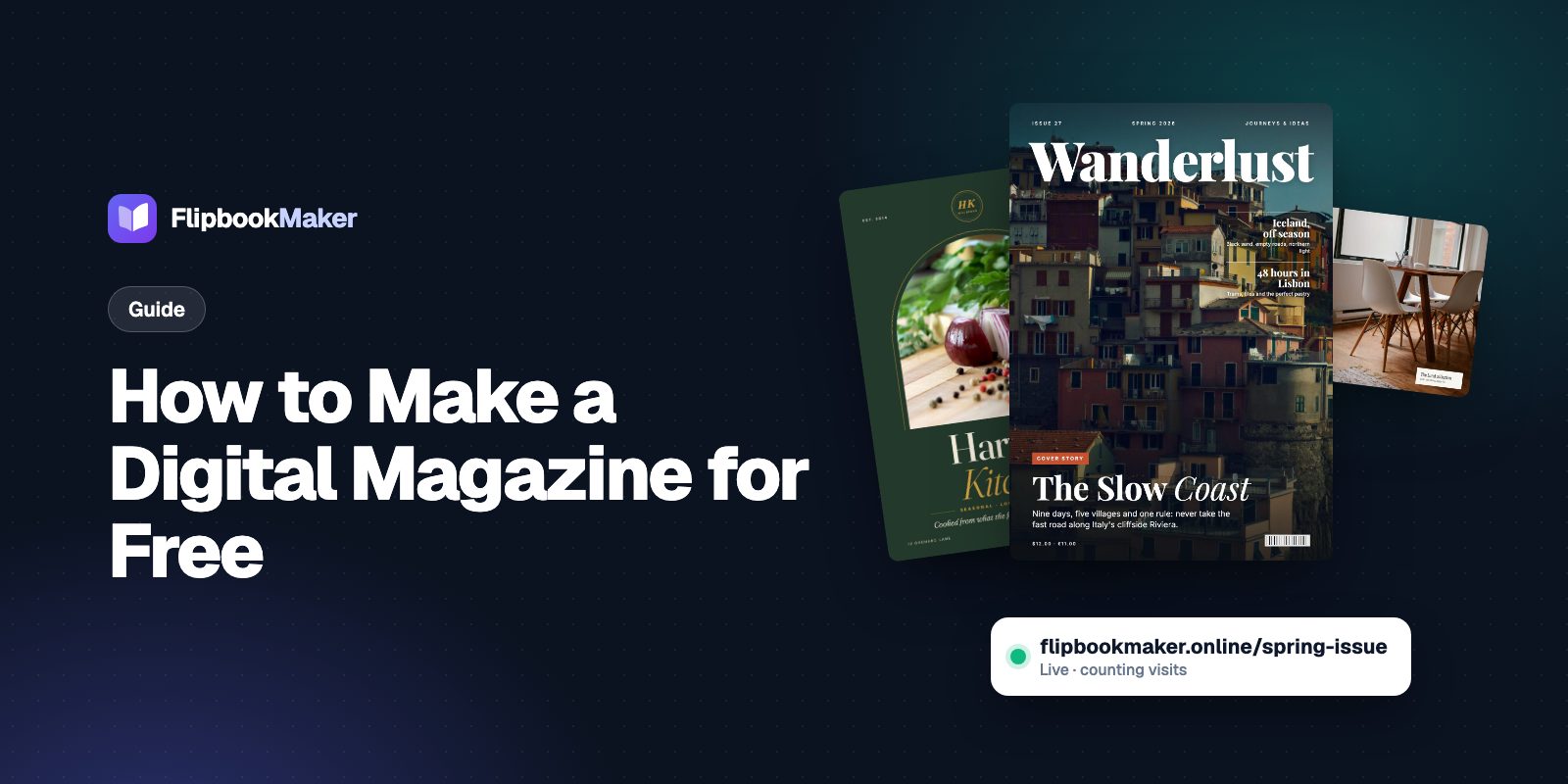
A magazine-style issue open as a two-page spread in the reader on a laptop (October 2026). Phones show one page at a time.
Step 5: Share each issue
- Email and social: paste the link with a one-line teaser about the cover story.
- Website: add the issue to an "Issues" page, or show the latest one with the embed code.
- Print edition or poster: download the QR code from the share panel and print it so readers can open the issue from paper.
- Archive: keep each issue at its own link and list them in order. Old issues stay online until you delete them.
Send the cover story and the contents list as text in the email too. That helps readers who use screen readers, and anyone searching their inbox.
What a flipbook magazine can't do
Be upfront with readers and contributors about these limits:
- No tappable links inside the pages. Write the web address out in full, or add a QR code image on the page.
- No text search, and no screen-reader text inside the pages, because each page is an image. The contents page works by page number, not by tapping.
- No download or print button for readers.
- No password, subscriber login or paywall. Anyone with the link can read a public issue. Use private to keep a draft to yourself.
- No swapping the PDF after publishing. To fix a typo, publish the corrected issue and share the new link.
- No audio or video inside the pages.
If your magazine needs searchable text or links, a website or a newsletter tool fits better. A flipbook suits issues that people read like print.
FAQ
How do I make a digital magazine for free?
Design the pages in a free tool such as Canva, Google Docs or Word, export a PDF, then publish it as a flipbook on Flipbook Maker with a free account. There are no paid plans, and you get a link, a QR code and an embed code.
What size should a digital magazine be?
US Letter portrait (8.5 × 11 in) is a good default in the US, and A4 elsewhere. Portrait pages fill a phone screen. Use the same size on every page.
How many pages should my first issue have?
12 to 24 pages is plenty. Keep the count even so pages pair up in spreads. A flipbook can have up to 300 pages.
Can readers flip through it on a phone?
Yes. The link opens in the phone's browser with no app or account. Phones show one page at a time, and readers can pinch to zoom. Tablets and computers show two-page spreads.
Can I publish a new issue at the same link?
No. Publish each issue at its own link, such as spring-issue-2027. List them on your website to build an archive.
Do I need to know graphic design?
No. Start from a template, change the photos and text, and keep the same layout in each issue. Readers like a layout they recognize.
Summary
Plan a short, even-numbered issue, design it in a free tool, export single pages as one PDF, and publish it as a flipbook with its own link. Keep the layout the same each time, and share the cover story as text so nobody needs to open the issue to know it exists. For a smaller version of the same routine, see our school newsletter guide.