How to share a school newsletter online that parents actually open
A page plan for a weekly or monthly school newsletter, design tips for phones, and how to share each issue as a flipbook link families open from email, text or a QR code.
Flipbook Maker TeamOct 27, 2026 6 min read
To put a school newsletter online, design it as usual (in Canva, Google Docs or Word), export it as a PDF, and publish it as a flipbook with its own link. Families then open it from an email, a text, the school website or a QR code, and turn the pages on their phones like a printed newsletter. Below is a 6-page plan for a weekly or monthly issue, tips for making it readable on a phone, and the steps to share it for free with Flipbook Maker.
Key takeaways
- Most families will read the newsletter on a phone. Design for that: large text, one idea per page, dates in bold.
- A 6-page issue covers most schools: cover, principal's note, dates, class news, reminders, contacts.
- Give each issue its own link, such as
flipbookmaker.online/oakwood-news-nov-2026, so past issues stay online as an archive. - Also put the key dates as text in the email. Flipbook pages are images, so screen readers and search can't read them.
- Follow your school's photo and privacy policy. Anyone with the link can open a published issue.
Why share the newsletter as a flipbook?
A PDF attachment has to be downloaded, often opens tiny on a phone, and gets lost in inboxes. A long email loses the layout your team worked on. A flipbook keeps your design and opens from one link:
- It opens in the browser. No app, download or account for families.
- It reads like a newsletter. One page at a time on a phone held upright, two-page spreads on a laptop. Families can pinch to zoom.
- One link works everywhere. Email, text, the school app, social media, the website or a QR code on the front-office door.
- You see if it's opened. Each public issue shows daily views (today, the last 7 days and the total).
A 6-page school newsletter plan
| Page | What goes on it | Tip |
|---|---|---|
| 1. Cover | School name, issue date, one photo, the 3 biggest items | Families decide from the cover whether to read on |
| 2. A note from the principal | 100–150 words | Keep it short and warm; link to nothing (links can't be tapped) |
| 3. Dates to remember | The next 2–4 weeks: events, days off, deadlines | Use a big, clear list or a mini calendar |
| 4. Class and club news | 3–5 short items with photos | One photo and two sentences per item |
| 5. Reminders and forms | What families need to do, and by when | Put the action and the deadline in bold |
| 6. Contacts | Office phone, email, address, hours | Repeat it every issue in the same place |
For a monthly issue, add pages for sports results, a student spotlight, the lunch menu or PTA news. Keep the page count even; books look best that way.
Design tips for phone readers
- Use a portrait page (US Letter or A4). It fills a phone screen held upright.
- Body text at 12–14 pt or larger on a Letter page. If you have to zoom to read it on your own phone, make it bigger.
- One idea per section, with a clear heading.
- Write dates in full, like "Fri, Nov 13", not "next Friday". Issues stay online long after the week they're for.
- High contrast: dark text on a light background.
- Same layout every issue, so families know where to look for dates and contacts.
How to make the newsletter
Any tool that exports a PDF works:
- Canva: search its templates for "school newsletter", then select Share → Download and choose PDF. Our Canva to flipbook guide has the full steps.
- Google Docs: select File → Download → PDF Document (.pdf).
- Word: select File → Save As and choose PDF.
Use the same page size on every page.
How to publish it as a flipbook
- Go to Flipbook Maker and drop in the PDF. It converts in your browser, so nothing is uploaded until you publish.
- Select Create flipbook and page through it on your phone. Check dates and names.
- Select Share & get a link and sign in with a free account.
- Pick a link with the issue in it, such as
oakwood-news-nov-2026. - In the book's details, add the school name, a tagline, your logo, and the office phone, email and website. They appear in the reader around the newsletter.
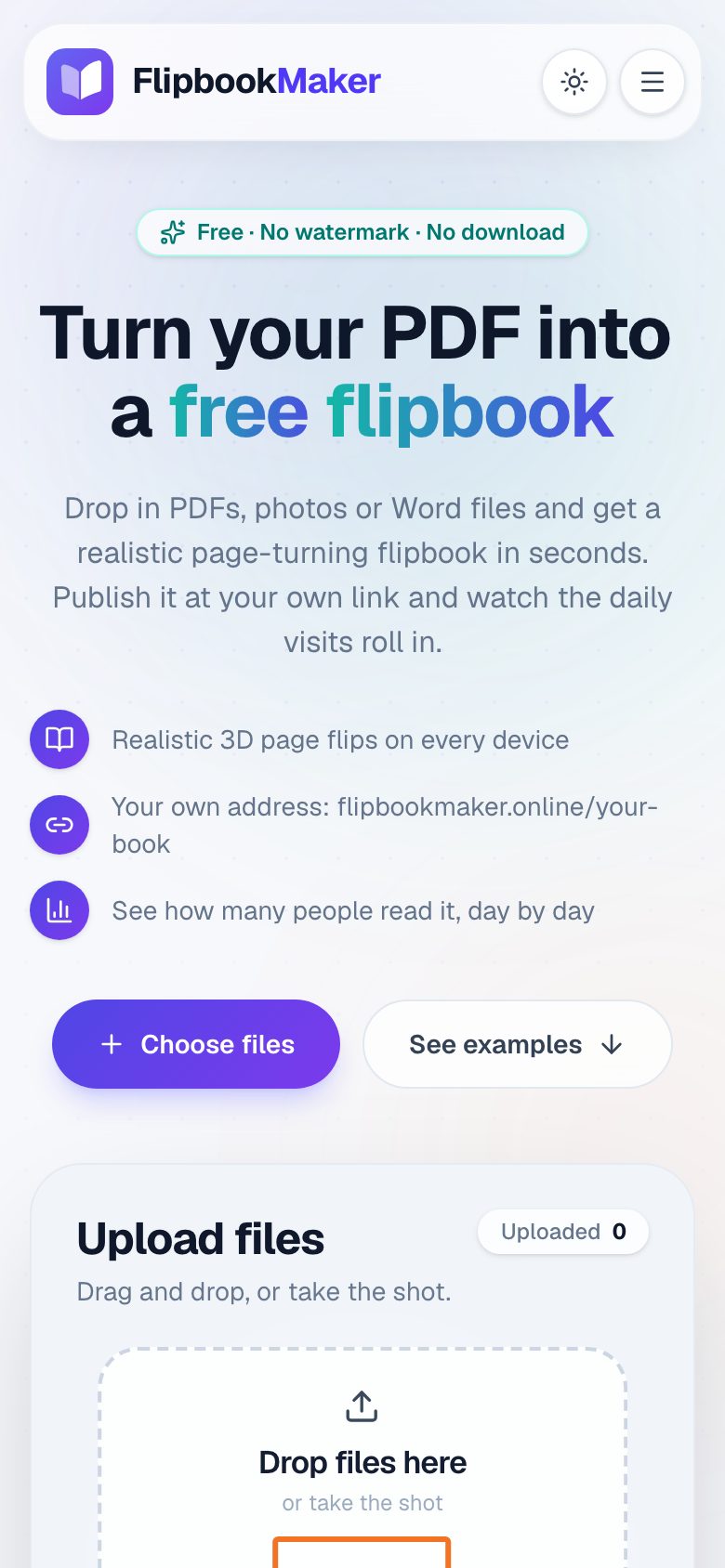
The upload area on a phone (October 2026). You can publish an issue from a phone or a computer.
How to send it to families
- Email: a short message with the 2–3 most important dates as text, then the link: "Read the full November newsletter". Families who use screen readers or search their inbox will find the dates there.
- Text or school app: paste the link with one line about what's inside.
- School website: add each issue to a "Newsletters" page, or show the latest one with the embed code.
- QR code: download it from the share panel as a PNG and print it on flyers, in the front office, or on paper copies for families who prefer print.
Photos and privacy
A published issue can be opened by anyone who has the link. It's kept out of Google search, but there's no password. Before you publish:
- Follow your school's or district's photo-consent policy, and leave out students whose families have opted out.
- Don't include students' home addresses, phone numbers or full birth dates.
- In the US, ask your school office how FERPA applies to student photos. The Department of Education has an FAQ on photos and videos under FERPA.
If you only want to proof an issue, keep it private (only you can open it) until it's ready.
What a flipbook newsletter can't do
- No tappable links inside the pages, because pages are stored as images. Put sign-up links in the email or on the website.
- No text search, and no screen-reader text inside the pages. Send key information as text too.
- No download or print button for families. Print paper copies yourself if you need them.
- No editing after publishing. To fix a typo, publish a corrected issue and send the new link.
FAQ
How do I put a school newsletter online for free?
Design it in Canva, Google Docs or Word, export a PDF, and publish it as a flipbook on Flipbook Maker with a free account. You get a link, a QR code and an embed code. There are no paid plans.
Can parents read the newsletter on their phones?
Yes. The link opens in the phone's browser with no app or account. Phones show one page at a time, and families can pinch to zoom.
Should I send the newsletter as a PDF attachment or a link?
A link is easier to open on a phone, works in texts and school apps, and keeps your layout. Put the most important dates in the email as text too.
Can I keep past issues online?
Yes. Publish each issue at its own link and list them on your website. A published issue has no time limit; it stays until you delete it.
Can I publish a newsletter in another language?
Yes. The pages are shown as you designed them, in any language. The Flipbook Maker website itself is in English.
How many pages can a newsletter flipbook have?
Up to 300 pages and a 100 MB PDF per issue, far more than a newsletter needs.
Summary
Design for phones, keep each issue to a few clear pages, and share it as a flipbook link with the key dates as text in the email. Give every issue its own link, and your newsletter archive builds itself.