How to make a yearbook in Canva and publish it online (free)
Plan the pages, design them in Canva with your team, export a PDF that isn't too big, and publish the yearbook as a page-turning flipbook that every family can open from one link or QR code.
Flipbook Maker TeamOct 26, 2026 7 min read
To make a yearbook in Canva, search Canva's yearbook templates (or start from a blank page), set one page size, add your photos and text page by page with your team, then download it as a PDF with Share → Download. To put it online, upload that PDF to a flipbook maker. Families then open it from one link or QR code and turn the pages like a printed yearbook. Below are the steps, a page plan, and the settings that keep a photo-heavy yearbook under the upload limit.
Key takeaways
- Canva has a library of yearbook templates you can filter by color, theme and layout, or you can start blank.
- Pick the page size first and keep it for every page. US Letter or A4 portrait read well on phones.
- Share the design with your yearbook team with Can edit access, and give each person their own pages.
- Download with Share → Download → PDF. The Digital preset keeps the file small; use Print for a printer.
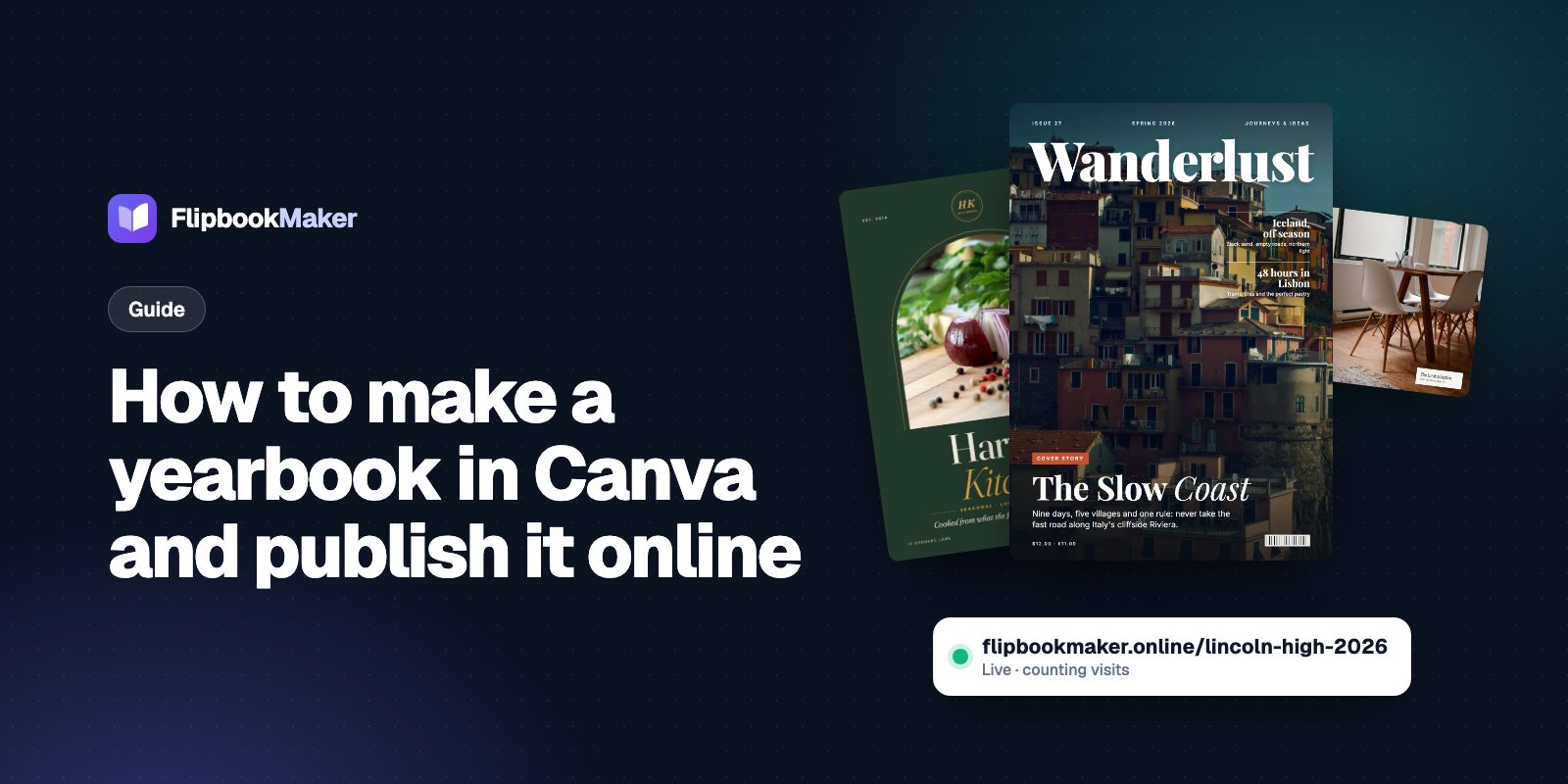
- Flipbook Maker publishes yearbooks of up to 300 pages and 100 MB for free, at a link such as
flipbookmaker.online/lincoln-high-2026. - Get photo permission first: anyone with the link can view it.
Step 1: Plan the yearbook before you open Canva
A page plan stops the "we have 40 sports photos and no index" problem. A typical school or club yearbook runs in this order:
| Section | Pages (example) | What goes on it |
|---|---|---|
| Cover and title page | 2 | School or club name, year, theme |
| Welcome letter | 1–2 | From the principal, coach or club lead |
| Contents | 1 | Sections and page numbers |
| Portraits by class or group | half the book | Photo, name, optional quote |
| Staff, coaches or leaders | 2–4 | Photos and names |
| Events and trips | 6–12 | Captioned photos, dates |
| Sports, clubs and teams | 6–12 | Team photos, results, names |
| Seniors or leavers | 4–10 | Baby photos, quotes, plans |
| Ads and dedications | 2–8 | Messages from families and sponsors |
| Signatures and index | 2–4 | Blank signature pages, name index |
Write the plan in a shared document or spreadsheet: page number, section, who is responsible, and the photos needed. Your book will show page numbers in the reader's page slider, so print page numbers on the pages too and the contents page will match.
Step 2: Start from a Canva yearbook template
- In Canva, search for Yearbook. Canva's yearbook maker page shows the template library, which you can filter by color, theme or layout.
- Choose a template, or start from a blank design at your page size.
- Add pages for each section of your plan. Duplicate a finished page to keep the layout the same, for example one portrait grid page per class.
- Drag in photos and edit the text. Keep the same fonts and colors across the book.
Tip: Build one page of each kind (portrait grid, event spread, team page) and get it approved before anyone builds the rest. Copying an approved layout is much faster than fixing 60 pages later.
Step 3: Work on it as a team
Canva lets you share a design with others. Select Share, add your team, and choose Can edit so they can work on their pages. To avoid people overwriting each other:
- Give each person a page range from your plan ("Sam: pages 24–31, sports").
- Keep a "to check" note on pages that still need names or photo permission.
- Have one person proofread every name. Misspelled names are the most common yearbook complaint, and the hardest to fix after printing.
Step 4: Check photos and permission
A digital yearbook is easy to share, which is the point, but also why you need permission:
- Follow your school's or club's photo-consent policy, and leave out any student whose family has opted out.
- Don't add home addresses, phone numbers or full birth dates.
- If a photo isn't yours (a parent's, or from a photographer), ask before using it.
On Flipbook Maker, a published yearbook can be opened by anyone who has the link. It's kept out of Google search, but there's no password. If you need only signed-in parents to see it, share the link through your school's own parent portal or newsletter rather than on public social media. The other option is a private book, which only you can open, so it suits proofing, not sharing.
Step 5: Download the yearbook as a PDF
Canva's Help Center describes the PDF download (Download designs as flattened PDF):
- Open the design and select Share, then Download.
- Under File type, choose PDF.
- Under Presets, choose Digital for the online version, or Print for a printer.
- Keep All pages selected, then select Download.
Yearbooks are heavy on photos, so file size matters. Flipbook Maker accepts PDFs up to 100 MB and books up to 300 pages. If the Print file is too big, download the online version with the Digital preset. If it's still too big, split the book into two, for example "Portraits" and "Events & sports", each at its own link.
If you're printing too, download a second copy with the Print preset and send that one to your printer or print service.
Step 6: Publish the yearbook as an online flipbook
- Go to Flipbook Maker and drop in the PDF. It converts in your browser, so nothing is uploaded until you publish.
- Select Create flipbook and page through it. Check the page order, especially the cover, and that two-page spreads line up.
- Select Share & get a link and sign in with a free account.
- Pick a link people can remember, such as
flipbookmaker.online/lincoln-high-2026. Keep the year in it so next year's book gets its own link. - In the book's details, add the school or club name, a short tagline and your logo.
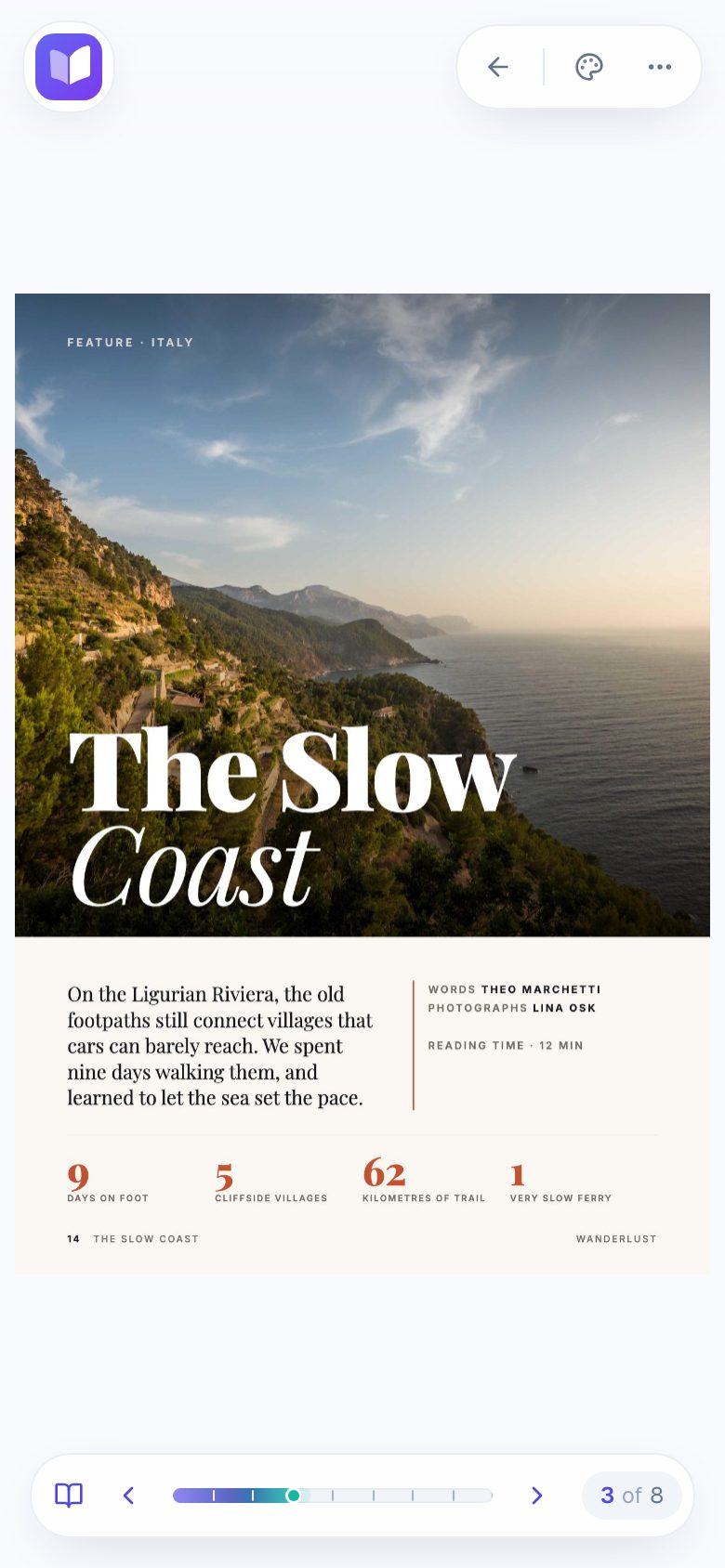
A photo-heavy sample flipbook (Wanderlust, a made-up travel magazine from our examples) on a phone, October 2026. A yearbook shows one page at a time on a phone held upright and two-page spreads on a computer.
Step 7: Share it with families
- Newsletter or email: paste the link with one line about what's inside.
- QR code: download it from the share panel as a PNG and print it on the back cover of printed copies, on posters, or on the graduation program.
- School website: use the embed code to show the yearbook on a page (how to embed a flipbook).
- Archive: keep each year at its own link and list them on one page of your website, so alumni can find old books.
The book's stats show daily views (today, the last 7 days and the total), so you can see whether families are opening it.
What an online yearbook flipbook can't do
- No signing or comments. Readers can't write on pages. Keep blank signature pages for printed copies.
- No search by name. Pages are images, so readers can't search the text. A name index at the back helps.
- No tappable links on the pages, and no download or print button for readers.
- No swapping the PDF. If you find a typo after publishing, fix it in Canva, publish a new book, and share the new link.
FAQ
Can you make a yearbook on Canva for free?
Canva has free yearbook templates and a free plan. Some templates, photos and elements are paid; Canva shows Pay and Download when your design includes them. Publishing the PDF as a flipbook on Flipbook Maker is free.
What size should a yearbook be in Canva?
Choose one size for the whole book before you design. US Letter (8.5 × 11 in) and A4 portrait are common and read well on phones. If you're printing, ask your printer for their size and bleed first.
How many pages can an online yearbook have?
On Flipbook Maker, up to 300 pages and a 100 MB PDF per book. Split larger yearbooks into two books.
Can several people work on a Canva yearbook at once?
Yes. Share the design with Can edit access. Give each person their own page range so they don't overwrite each other's work.
Is an online yearbook private?
On Flipbook Maker, anyone with the link can open a published yearbook. It's kept out of search engines, but there's no password, so share the link where only families will see it and follow your photo-consent policy.
Can parents read the yearbook on their phones?
Yes. It opens in the phone's browser from the link or QR code, with no app or account needed.
Summary
Plan the pages, build them in Canva with your team, download a Digital PDF under 100 MB, and publish it as a free online yearbook with its own link and QR code. For more on exporting from Canva, see how to turn a Canva design into a flipbook.